Google Workspace for Rocket Routine OS
Set up in 20 minutes
Each person connects their own Gmail, Google Calendar and Google Drive. An agent working for that person sees only that person's data, never anyone else's. Everything runs through one sign-in app that your Google Workspace administrator creates once in your own Google Cloud project; agents never see its secret.
Enter these values only in your own Rocket Routine OS app, at your own address. We never ask you to send keys or secrets by e-mail or chat.
Redirect URL: https://<your-app-address>/api/v1/connections/oauth/callback
In Google Cloud (https://console.cloud.google.com), done by your Google Workspace administrator:
- APIs and Services, Library: switch on the Gmail API, Google Calendar API and Google Drive API (and the Google Search Console API if people should read Search Console).
- Google Auth Platform: set up the consent screen with the user type Internal. Then no review by Google is needed, and nobody outside your company can sign in.
- Data access: add the permissions, recommended set:
openid,email,profile(always needed), plusgmail.modify,gmail.send,calendar.events,calendar.readonly,drive.readonlyanddrive.file. Add more only if people should be able to allow it (see Details). - Clients: create an OAuth client of the type Web application and add the redirect URL above as an authorized redirect URI.
- Give the client ID and the client secret to an Admin of your company in Rocket Routine OS.
In Rocket Routine OS, done by an Admin, under Settings, Connections, Google (personal):
- Choose Set up the company's Google app and enter the client ID and the client secret.
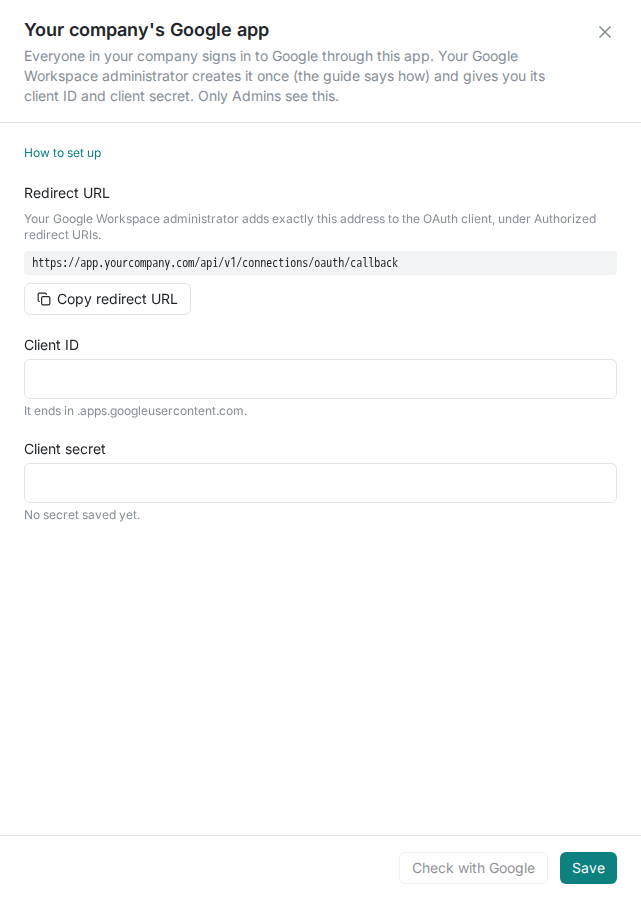
- Click Save.
- Click Check with Google: "Google accepts this app." means it is ready.
Then each person connects their own account under Google (personal), Connect my account.
The three most common snags
- "Google shows the app as not verified": the consent screen is not set to Internal (step 2).
- "The app does not know this sign-in address yet": the redirect URL from step 4 is missing or differs. Add it exactly as shown.
- "Your administrator has blocked this app": in the Google Admin console, set the app to Trusted (Security, Access and data control, API controls, App access control).
Details
Each person's own connection
When a person chooses Connect my account, they decide what agents may do for them:
- Gmail: Do not allow, Read only, or Read and change; separately, Send mail as me.
- Calendar: Do not allow, Read only, or Read and change.
- Google Drive files: Do not allow, Read only, Read everything, add new files, or Read and change all files.
- Search Console (read only): optional, if their own Google account already has access to the website in Search Console.
Always included: showing whose account this is, and staying signed in so they do not have to sign in again. Google Docs, Sheets and Slides are reached as files in Drive. Sending, inviting people, sharing and deleting always wait for the person's yes in the Inbox.
Only that person, and the agents they allow when they work for them, can use the connection. Nobody else can see it or use it, not even an administrator.
The permissions and why
| Permission | What it allows | Why |
|---|---|---|
openid, email, profile |
showing whose account is connected | always needed |
gmail.readonly |
reading mail | summaries, finding a mail |
gmail.modify |
reading, labels, drafts, archiving (no permanent delete) | preparing replies, tidying the inbox |
gmail.send |
sending mail | only if mail may be sent; it still waits for the person's yes |
calendar.readonly |
reading calendars and events | preparing meetings, finding free time |
calendar.events |
creating and changing events (not deleting whole calendars, not sharing them) | scheduling |
drive.readonly |
reading all files | working with existing documents |
drive.file |
adding new files, and changing only the files the agent created itself | storing results without touching existing files |
drive |
reading and changing all files | only if people should allow it |
webmasters.readonly |
reading Search Console | only if people should read their websites' search figures |
Add only what your company needs. People can only allow what the administrator added under Data access.
Read, or read and change
- Each person sets it per area when they connect, and can change it later (Change what is allowed).
- Sending, inviting people, sharing and deleting always wait for the person's yes in the Inbox, whatever they allowed.
- Agents at the Shadow level never change anything in a connected service. They say what they would change, and an Admin can raise their level.
The company-wide Google Workspace connection
A company-wide connection (a service account for shared mailboxes) exists in the product, but agents cannot use it on Rocket Routine yet. Use each person's own connection for now.
What agents can do with it (examples)
- "Summarise my unread mails from today."
- "Find a free hour with me next week and draft the invitation."
- "Put the newest version of the offer from my Drive into the chat."
- "Draft a reply to the last mail from the tax adviser." (it stays a draft until you send it)
- "Which of my meetings this week have no agenda yet?"
When it does not work
What Rocket Routine OS shows, and what to do:
- Your administrator has blocked this app: "Your Google Workspace administrator has blocked this app. Ask them to open the Google Admin console, go to Security, Access and data control, API controls, App access control, find the Rocket Routine app and set it to "Trusted" (or allow the permissions listed). Then connect again."
- Google shows the app as not verified: "Google shows the app as "not verified". Ask your Google Workspace administrator to open the Google Cloud console, go to Google Auth Platform, Audience, and set the user type to "Internal" (this also removes the warning for your own company without any review by Google). Then connect again."
- The app does not know this sign-in address yet: "The app does not know this sign-in address yet. Ask your Google Workspace administrator to add the redirect URL shown here to the app (Google Cloud console, APIs and Services, Credentials, the OAuth client, Authorized redirect URIs). Then connect again."
- Google does not know the app: "Google does not know the app any more. Check the client ID that was saved for the Google sign-in; the OAuth client may have been deleted in the Google Cloud console."
- Google refused the app's secret: "Google refused the app's secret. Ask your Google Workspace administrator to create a new client secret for the OAuth client; an Admin of your company then enters it in Settings, Connections, Google (personal)."
- A permission is missing in the app: "The app has not been allowed to ask for one of the permissions. Ask your Google Workspace administrator to add it to the consent screen (Google Cloud console, Google Auth Platform, Data access), or connect again and allow fewer things."
- This account cannot be used: "This Google account is not part of the company that owns the app. Sign in with your work account, or ask your Google Workspace administrator to let you use it."
- The sign-in ends after about an hour: "Google did not allow this sign-in to renew itself, so it will need to be connected again in about an hour. Reconnect it; if this happens again, ask your Google Workspace administrator to check the app."
- The app is not set up yet: "Google sign-in hasn't been set up yet. Ask an Admin of your company to enter your company's Google app in Settings, Connections, Google (personal). The setup guide says exactly what to create."
- Check with Google says "Google doesn't accept this client ID and secret. Check both in the Google Cloud console (APIs and Services, Credentials) and save them again."
Good to know
- The client secret is stored encrypted and is never shown again. Agents never receive it.
- A new client secret keeps everyone connected. A new client ID, or removing the app, means everyone has to connect their Google account again.
- This is Google's rule: with Internal, only accounts of your own Google Workspace organisation can sign in (private @gmail.com accounts cannot).